Image Processing
Image Processing lets you process a single image through the EyesOnIt detection pipeline. It uses the same polygon canvas and the same detection tabs as video, but it runs on a single uploaded image and does not include motion detection, alert timing, or stream notification settings. Image Processing is a great way to test various detection settings quickly to achieve great results with video processing of the same scene.
The screenshot below shows the image processing page immediately after an image is loaded.
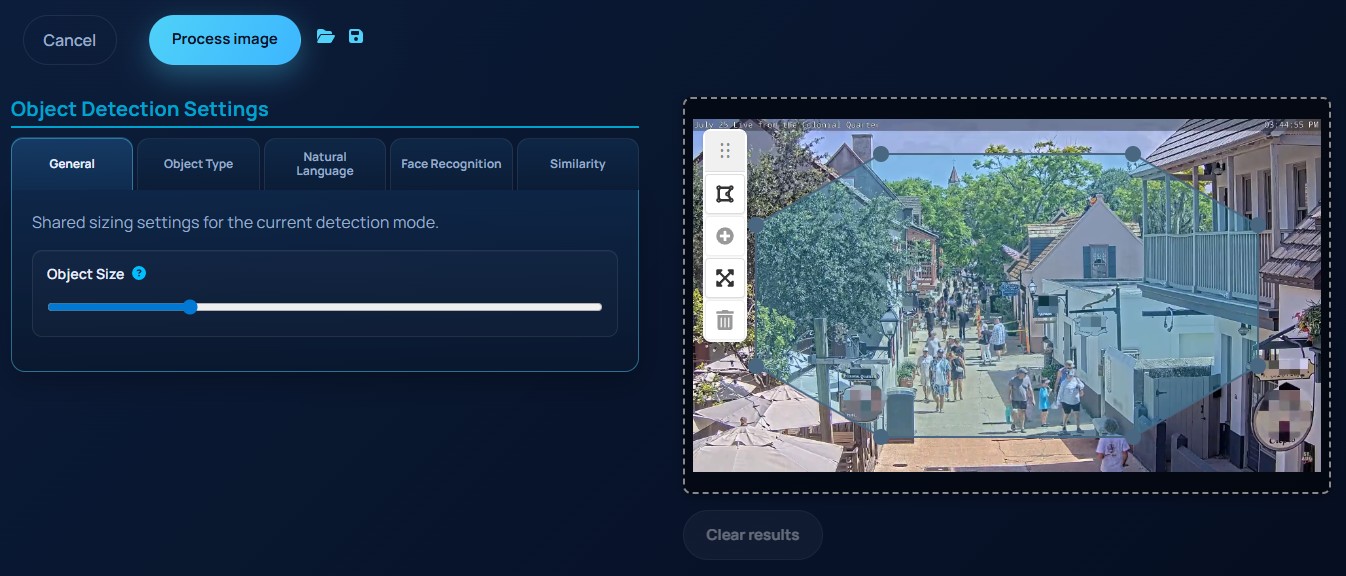
Loading an image
Drag an image into the canvas area or click the drop zone to choose one from your computer. As soon as the image loads, EyesOnIt creates a default region of interest on the preview.
You can then:
- move or reshape the region
- add more polygons
- add vertices
- expand a polygon to the frame edges
- delete a region, as long as at least one region remains
Detection options
Image Processing uses the same detection tabs as the video region editor:
GeneralObject TypeNatural LanguageFace RecognitionSimilarity
The available object classes are Person, Vehicle, Animal, Bag, and Something Else.
Natural language descriptions support both foreground and background descriptions. Face recognition supports person or group matching plus a match threshold. Similarity detection supports an uploaded reference image plus a match threshold.
Running the image
Select Process image to send the current image and region configuration to EyesOnIt. The returned results are drawn over the image.
The screenshot below shows a processed image with detection overlays and confidence values.
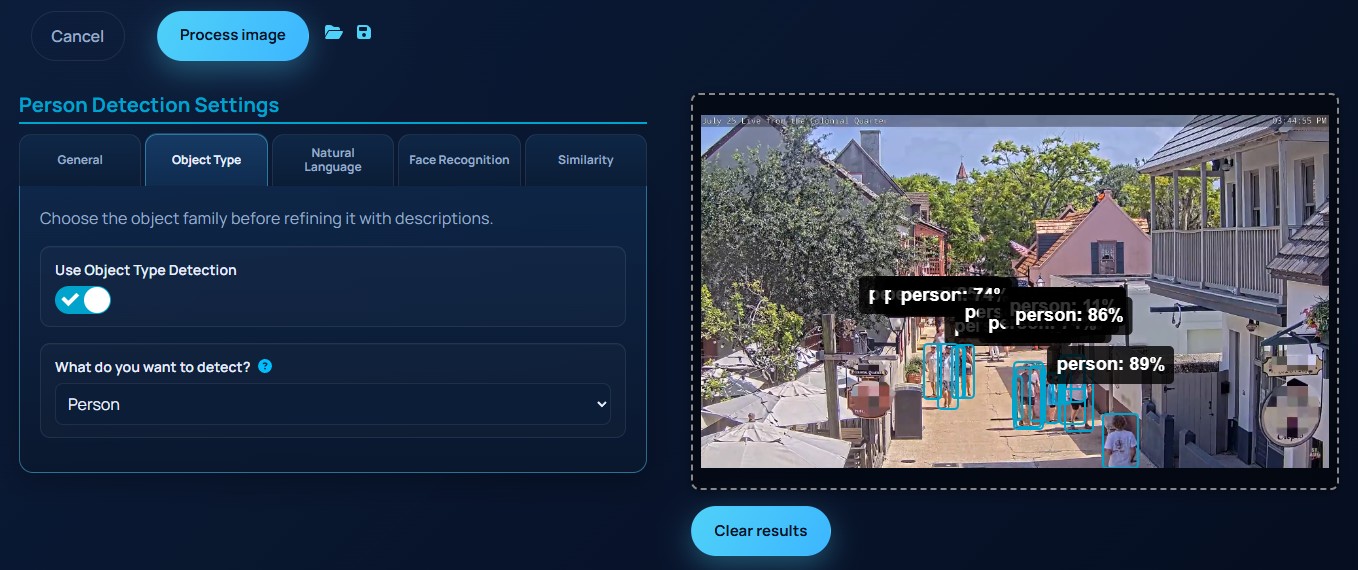
Use Clear results to return to the editable image state. The editor also supports JSON import and export for saving or reloading image-processing configurations.